Before you begin
- Use Windows 10 or 11.
- Connect the laptop to the client network by Ethernet or Wi-Fi.
- Have the Wireborne license key available for first activation.
- Only scan a network you own or have permission to service.
The commercial installer will be code-signed. If the file is not digitally signed by Executive Technology Group, do not install it.
First run
- Install and open Wireborne. The installer adds the app to Windows; Wireborne is not intended to run as an unexplained portable file.
- Enter the license key. Your license permits activation on 2 or 5 Windows computers, depending on the purchased tier, and periodically validates online.
- Add customer details or skip. Name, address, technician, and visit notes can be entered now or at any point before saving or reporting.
Run the first scan
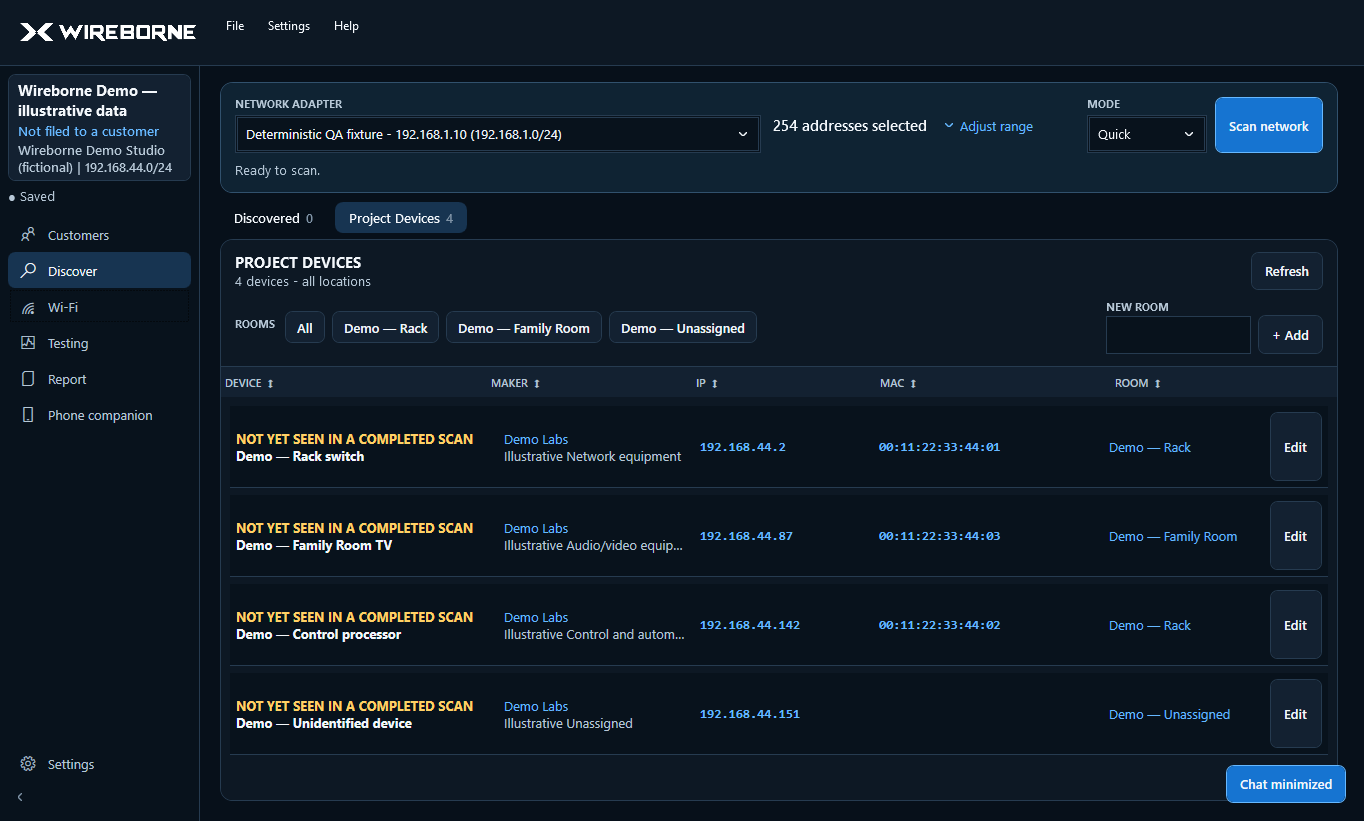
- Select the physical network adapter. Choose the Ethernet or Wi-Fi adapter connected to the client LAN. Avoid disconnected, VPN, virtual-machine, and phone-tether adapters unless they are intentionally in use.
- Confirm Starting IP and Ending IP. Wireborne shows readable addresses such as
192.168.1.1through192.168.1.254. - Choose Quick or Thorough. Quick prioritizes the active-device list. Thorough adds deeper evidence collection and takes longer.
- Select Scan network. The status area reports progress; results populate Discovered Devices and remain there as the complete observation set.
Device identification is evidence, not certainty. Review unknown or surprising results and correct the project record when necessary.
Save the project
Choose File → Save or press Ctrl+S. If you skipped customer details, Wireborne can ask for a project name without forcing you to complete every field. Use File → Open to resume the saved visit later.